- There are a few issues that you might encounter with your keyboard, and one of the most common is that it types the wrong characters.
- In this article, we are exploring the reasons why the keyboard won't work and how to fix the problem.
- For more guides on the same topic, take a look at our Keyboard Issues section.
- What's more, in our Laptop&PC Hub you'll find even more troubleshooting material about today's most-used devices.
Keyboards are generally reliable peripherals. You can use them for years without encountering any issues whatsoever.
But just like any hardware, they may sometimes behave erratically: certain keys won’t work, the keyboard is unresponsive or there’s a beeping noise when you type.
As you can see, the array of issues is quite diverse. Well, in this guide, we’re going to focus on an even stranger issue that causes keyboards to type the wrong letters.
So, for example, you press the ‘w’ key, but your Word document or the Search box displays a different letter. We compiled a list of fixes that will hopefully help you solve this problem.
What can I do if my PC keyboard types the wrong characters?
- Update your computer
- Uninstall keyboard drivers
- Check your language settings
- Check AutoCorrect settings
- Make sure NumLock is off
- Run the keyboard troubleshooter
- Scan your system for malware, viruses
- Buy a new keyboard
1. Update your OS
First things first, let us rule out outdated software as a possible root cause for this problem. If you’re not running the latest Windows 10 software version on your computer, go to Settings > Update & Security > Windows Update and check for updates.
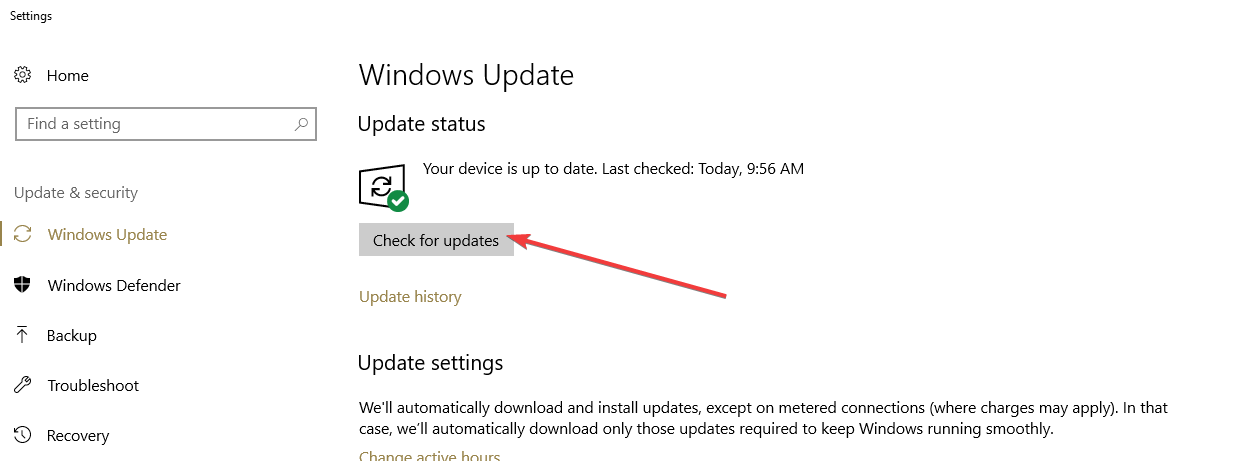
Restart your computer and then check if the issue persists.
On the other hand, there have also been reports suggesting that installing the latest Windows 10 updates actually broke keyboards. If this happened to you as well, try to uninstall the respective updates or roll out back your OS.
If the rollback option is missing and you can’t go back to your previous OS, follow the simple steps in this handy guide to fix the problem easily.
If you’re having trouble opening the Setting app, take a look at this article to solve the issue.
Having trouble updating your Windows 10? Check out this guide that will help you solve them in no time.
2. Uninstall keyboard drivers
If your keyboard driver is faulty, reinstalling it may help you fix the problem.
- Go to Start > type ‘Device Manager‘> double click on the first result
- Locate the keyboard driver > right-click on it > select Uninstall
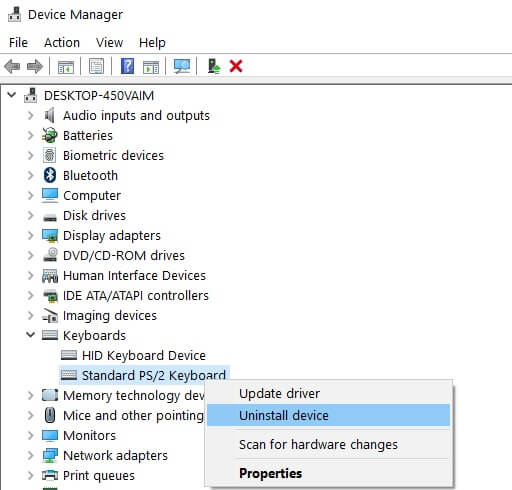
- Reboot your computer without reinstalling the driver. Your computer should reinstall the keyboard driver on its own. You can then launch Device Manager again 3. When the system restarts it should reinstall the driver on its own.
If this doesn’t happen, you can update your keyboard drivers automatically using IObit Driver Booster 7. This way, you’ll prevent PC damage by installing the wrong driver versions.

Driver Booster 7 helps detect and update outdated drivers efficiently. The scanning speed is just perfect to acquire your driver status in no time. The tool also has an auto driver update that you can activate, to get the latest updates in real-time.

IObit Driver Booster 7 Free
Keep your drivers up-to-date and get your PC to perform at its best.
- To use Driver Booster 7, first you have to download the tool. The process is quick.
- Then, press the Scan button in the Update feature. The tool will scan your system in just a few minutes and show the result together with the recommended actions.
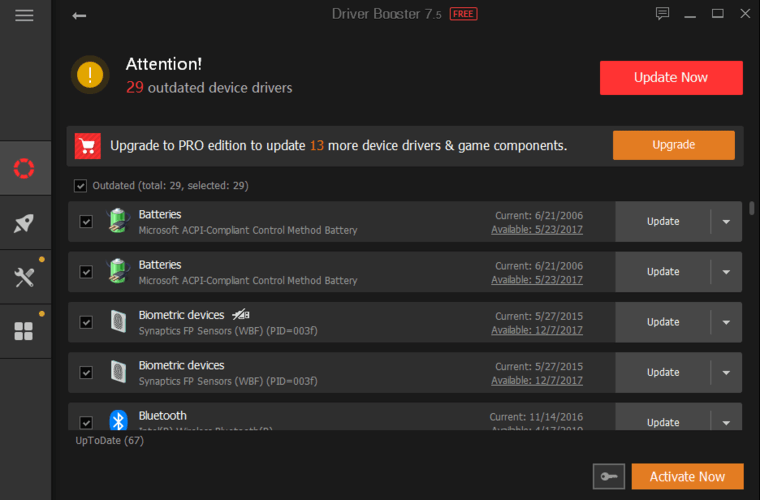
- Press the Update button if you want to continue the process. The toll will warn about possible outcomes (temporary BSOD, temporary freezing of some processes etc.).
- Allow the tool to fix all outdated drivers.
Apart from this feature, with IObit Driver Update 7 you can also fix various Windows issues, such as no sound or bad resolution issues and network failures. With the Advanced SystemCare, you can optimize the entire system with one click.
Note that some features of this tool don’t come free.
3. Check your language settings
Sometimes, wrong language settings may be the culprit. So, make sure that you’re using the correct language settings for your keyboard. Here are the steps to follow:
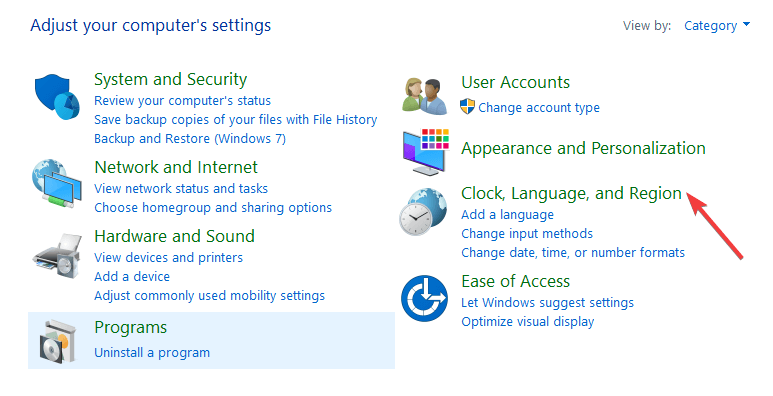
- Go to Control Panel, select Clock, Language and Region
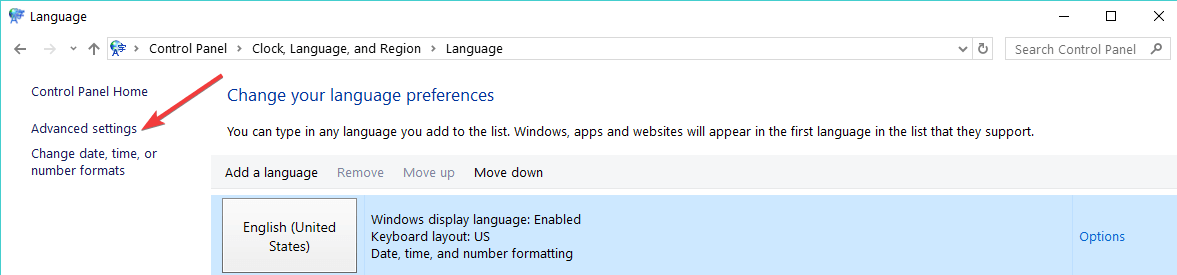
- Select Language and go to Advanced Settings
- Locate the option Override on Default Input Method and use the drop down to select your preferred language
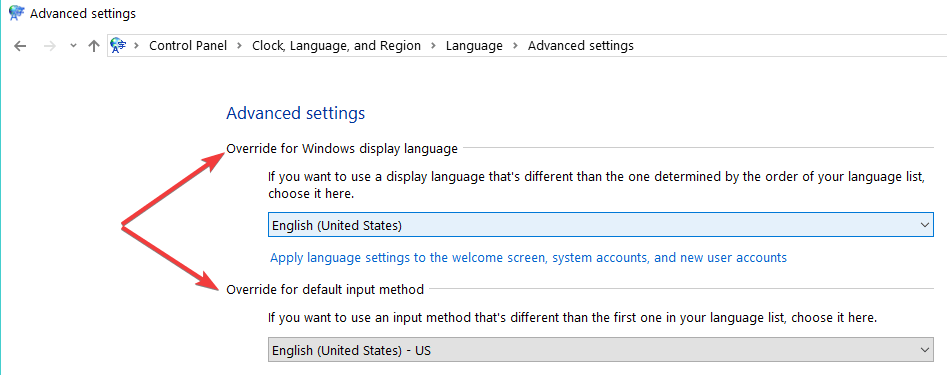
- Set the Override for windows display language to the same language, hit OK and restart your computer
You can’t open Control Panel? Take a look at this step-by-step guide to find a solution.
If you use a different language, you need to first download the corresponding language pack by following these steps:
- Go to Start, type region and language, then select Add a language
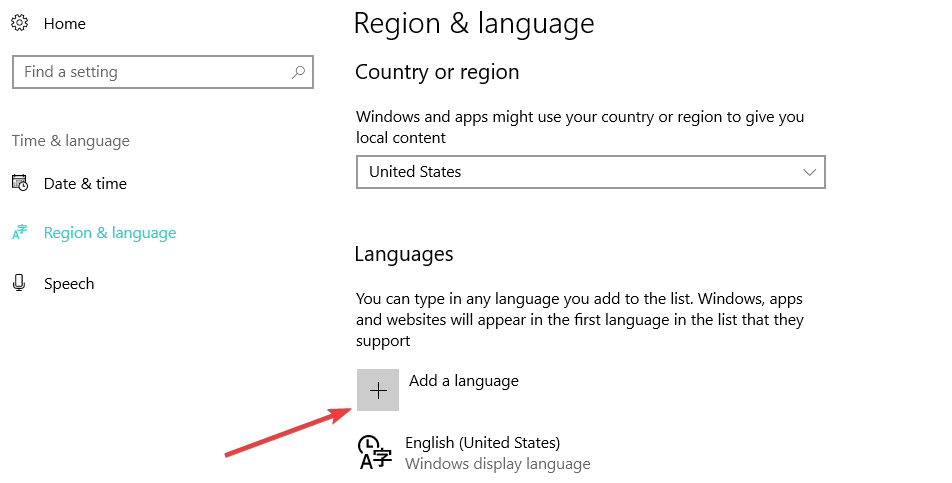
- You now need to change your language settings and set the new language as default. You can follow the same steps listed above.
Some users who used different language settings confirmed they fixed the problem by using US English. If your keyboard keeps on typing the wrong characters, go to the next solution.
Your language pack doesn’t work? Don’t worry, we’ve got the right solution for you.
4. Check AutoCorrect settings
If changing the language layout settings didn’t help, make sure that AutoCorrect is properly set up. This workaround applies especially if your keyboard types the wrong letters in Word but works fine in other apps and programs.
- Open Word, go to File and select Options.
- Navigate to Proofing and select AutoCorrect Options.
- Is there any AutoCorrect entry that converts the letters and function keys into numbers and special characters? If this is the case, then select and delete that entry.
5. Make sure NumLock is off
Sometimes, there is nothing wrong with your keyboard. The only ‘problem’ is that you forgot to turn off the NumLock key.
So, simply press the NumLock key once and check if your keyboard now types the correct characters.
6. Run the keyboard troubleshooter
Windows 10 features a dedicated troubleshooting tool that allows users to quickly fix common issues affecting your computer.
Since you’re experiencing a keyboard bug, go to Settings > Update & Security > select Troubleshoot. Scroll down, locate the keyboard troubleshooter and run it.
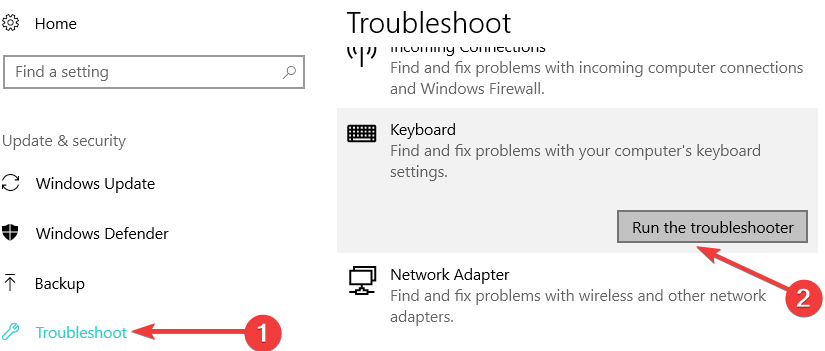
Wait until the tool completes the scanning process and follow the troubleshooting instructions that may appear on the screen. You can then restart your Windows 10 computer and check if the problem persists.
If the Troubleshooter stops before completing the process, fix it with the help of this complete guide.
7. Scan your system for malware, viruses and other threats
Your keyboard may type the wrong characters due to malware infections. Let us not forget that keyloggers are quite common and they may sometimes even change your keyboard settings.
Generally speaking, keyloggers remain undetected, but sometimes they may trigger various keyboard issues, so it’s important to make sure that your computer is clean. To prevent future keylogger infections, check out these two guides:
Use your antivirus of choice to run a full system scan. If you don’t know what antivirus to install on your computer, check out this list of the best antivirus tools for Windows 10.
We also recommend you to use an additional anti-malware tool, such as Malwarebytes.
Perform a full system scan directly from Windows Defender. Find out how it’s done right here!
8. Buy a new keyboard
Well, if nothing worked, then maybe there is something wrong with your keyboard. If you’re using a USB or wireless keyboard, disconnect it and try another one.
Also, don’t forget to use a different port as well. If the second keyboard works perfectly fine, then buy a new keyboard.
There you go, we hope that these workarounds helped you fix the problem and your keyboard now types the correct characters. If you’ve got additional tips and suggestions on how to fix this issue, let us know in the comments below.
FAQ: Read more about keyboard issues
- Why does my keyboard type the wrong letters?
It is very possible the wrong language settings may be responsible for the issue. So open the Control Panel, then Clock, Language and Region, select Language and then Advanced Settings, to change the ones you need.
- Where is my Number Lock key?
The numeric lock or number lock key, also known as Num key, Num Lock, or Num Lk key, is located on the top left corner of a keyboard.
- Is there a button that locks the keyboard?
We rather recommend using a keyboard locker software; some of the apps can also be used to lock the mouse, as well.
Editor’s Note: This post was originally published in April 2018 and has been revamped and updated in June 2020 for freshness, accuracy, and comprehensiveness.
Was this page helpful?
Get the most from your tech with our daily tips
and
If you are looking for a cheap and genuine microsoft product key, warranty for 1 year.
It will be available at the link: https://officerambo.com/shop/
Microsoft Windows Embedded 8.1 Industry Pro : https://officerambo.com/product/windows-embedded-8-1/
Key Windows 7 Professional / Home Base / Home Premium (2 USER) : https://officerambo.com/product/key-windows-7/
Microsoft Windows 8.1 PRO (2 PC) : https://officerambo.com/product/microsoft-windows-8-1-pro/
Windows Server 2012 R2 : https://officerambo.com/product/windows-server-2012-r2/
Visual Studio Enterprise 2019 : https://officerambo.com/product/visual-studio-enterprise-2019/
Windows Server Standard / Datacenter / Essentials : https://officerambo.com/product/windows-server-all-version-standard-datacenter-essentials/
Microsoft Office Professional Plus for Windows : https://officerambo.com/product/microsoft-office-professional-plus-for-windows/
Microsoft Office Home and Student for Windows : https://officerambo.com/product/microsoft-office-home-and-student/
Key Microsoft Access 2016 : https://officerambo.com/product/key-microsoft-access-2016/
Microsoft Visio Professional : https://officerambo.com/product/microsoft-visio-professional/
Microsoft Project Professional : https://officerambo.com/product/microsoft-project-professional/
Account Microsoft Office 365 Profestional Plus 2020 Update For 5 Devices : https://officerambo.com/product/account-microsoft-office-365/
Key Microsoft Windows 10 Profestional / Profestional N : https://officerambo.com/product/key-microsoft-windows-10/
Key Microsoft Windows XP Pro : https://officerambo.com/product/key-microsoft-windows-xp-pro/
Microsoft Office Home and Business for Mac : https://officerambo.com/product/microsoft-office-home-and-business-for-mac/

No comments:
Post a Comment