Thursday, January 21, 2021

The Practical 365 Weekly Update: S2, Ep 5 – New Teams features and Exchange forwarding changes


This week’s topics:


New Teams Meeting improvements – background noise cancellation and new together mode scenes, but virtual breakout rooms delayed


New Together Mode scenes are reportedly rolling out this month, so in addition to the standard lecture theatre, you’ll be able to choose a variety of rooms for various size meetings. This includes an auditorium, amphitheater, and various meeting rooms for smaller get-togethers. As yet, improvements to make sure everyone is in-scale aren’t here, but we hope Microsoft are working on them.


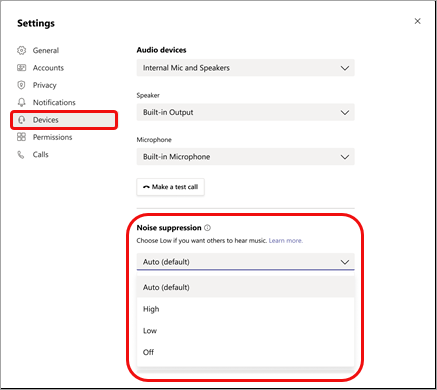
You might also remember Microsoft announcing that they will provide noise suppression features – so that if you are eating a packet of chips/crisps (their example – not ours) with your mic open – no one will hear you. This will default to Auto but also allow you to switch it to high, low, or off.


According to Microsoft, the “off” setting may provide a better audio experience for people using Teams with high-fidelity microphones, which will be an improvement for some, because Teams already processed audio for clarity prior to this improvement.
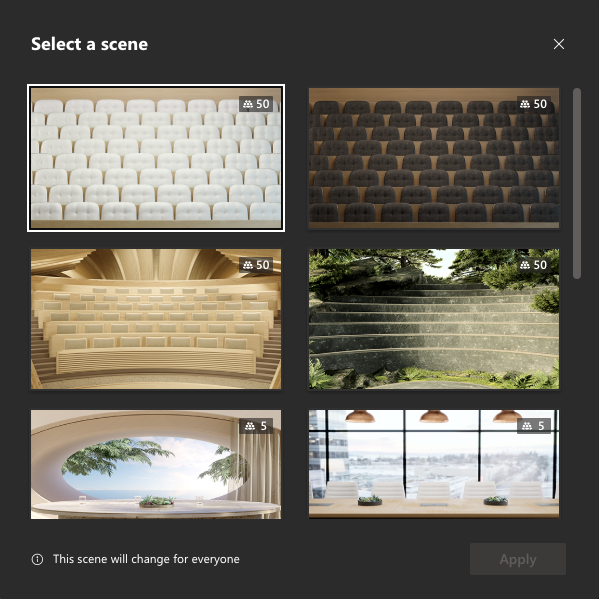


New Together Mode scenes
Microsoft Teams Noise Suppression

Read more about new together mode scenes


Read more about background noise cancellation and see the roadmap item


Updated roadmap item for breakout rooms


Teams gets support for multiple accounts this December


Several IT news sites trumpeted the support for multiple accounts as a breakthrough moment for Teams users who need to switch between multiple corporate identities.


They were a little quick off the mark, as the new Microsoft 365 roadmap item was clarified soon after to state that this will be to allow one personal account and one work account.


It might also be worth mentioning that for many people, signing in as multiple work accounts is not a common requirement, as most business users who work across multiple tenants will do so using the existing Guest tenant switching capability. It is often consultants and IT professionals focused on Microsoft Teams who want to be able to sign into different corporate identities.


Good news for those hoping for multiple corporate accounts did come soon after, with Rish Tandon, CVP for Teams Engineering, stating that “we are starting with one work and one personal account but will be building on this foundation for multiple work accounts


We suspect though that the roadmap item precedes the “Teams with Friends and Family” preview on mobile earlier this year coming to desktop, as mentioned by Jeff Teper, on the 27th Oct. Outside of the world of Teams consultants this probably represents the bigger ask as people attempt to use Teams at home and find they can’t sign in.


Read more…


Microsoft Teams Public Preview – an “Insider Ring” for Teams updates announced


A common ask from many IT professionals is the ability to test new features before they are launched to all staff, and it has been confusing that what was known as a targeted release isn’t available in Teams. Following the naming convention for Microsoft 365 Apps for Business, this will be called the “preview” similar to the current, preview and beta channels.


This will be available to switch on in the Teams Admin Center, and then expose the ability to enable preview features within the client when required.
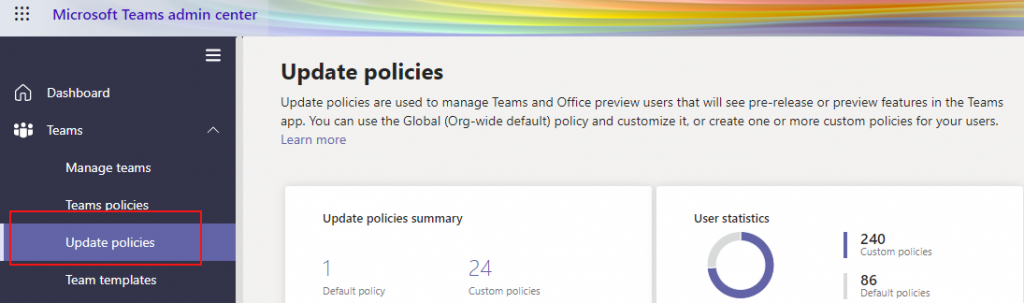


Select the Update policies option

Read more…


Office leaves support


Office 2010 for PC and Office 2016 for Mac left extended its support on October 13th.


Rebecca Keys, Program Manager on the Office release and delivery team joins us on the show.



Rebecca Keys joins the show this week

On the last episode we asked you to send in questions for Rebecca, and we asked these on the show today:


  • Office 2010 still works well for our staff and I don’t have a support agreement with Microsoft. What’s the risk of not upgrading?
  • Office 2013 is no longer supported by Office 365, but it’s still under the support of Microsoft. What’s the difference here?
  • What’s the reason why Office 2016 for Mac leaves support before Office 2016 for PC?

Rebecca shared key links with us that you should bookmark regarding end of support:


aka.ms/lifecycle


aka.ms/OfficeEOS-community


You can find Rebecca on twitter at @RebeccasWorking


Announcing Microsoft Endpoint DLP General Availability


Endpoint DLP promises to make good on what WIP (Windows Information Protection) unfortunately didn’t, and make it much easier to keep control of information once it leaves Microsoft 365 and moves around users’ desktops and laptops.


Endpoint DLP interfaces with Windows 10 and requires you to onboard devices – using Group Policy, Intune, Config Manager, or scripts – and allows DLP policies, defined in the Security and Compliance center. This will target actions that happen outside of Microsoft 365, such as restricting the copying of sensitive data to removable media, network shares, uploaded via Edge, and accessed by unallowed apps or restricting printing.


To use it, you’ll need either Microsoft 365 E5 licensing or the E5 compliance add-on SKU. All devices must run Windows 1809 or higher, Edge Chromium, Microsoft 365 Apps (Office Pro Plus) 2009 or higher, and be Azure AD joined or Hybrid Azure AD Joined.


Read more…


Changes to automatic forwarding settings in tenants


Highlighted this week is a change rolling out to auto-forwarding behavior in Exchange Online. This change to the outbound spam filter policy affects the automatic forwarding default option of “automatic” (system controlled) which was previously “on” and now is “off”.


This is a wise move as it will help avoid security incidents caused by mail being auto-forwarded out of your organization by users (or by compromised accounts), which may have unintended consequences.


You can choose to revert this change by switching the setting to “on”, but it is advisable to create a custom outbound spam filter policy and assign it to only those people or mailboxes that should have forwarding available.


Read more…


Option to “Create shared library” appears in OneDrive


If you don’t currently restrict the creation of Microsoft 365 Groups, then your users will see a new option within OneDrive encouraging them to create a new “shared library” within the OneDrive for Business web interface.


As we discussed on the show, this is good because it helps drive the right type of user behavior – encouraging them to create the appropriate shared place to share, instead of making a folder in their OneDrive and sharing content from there.
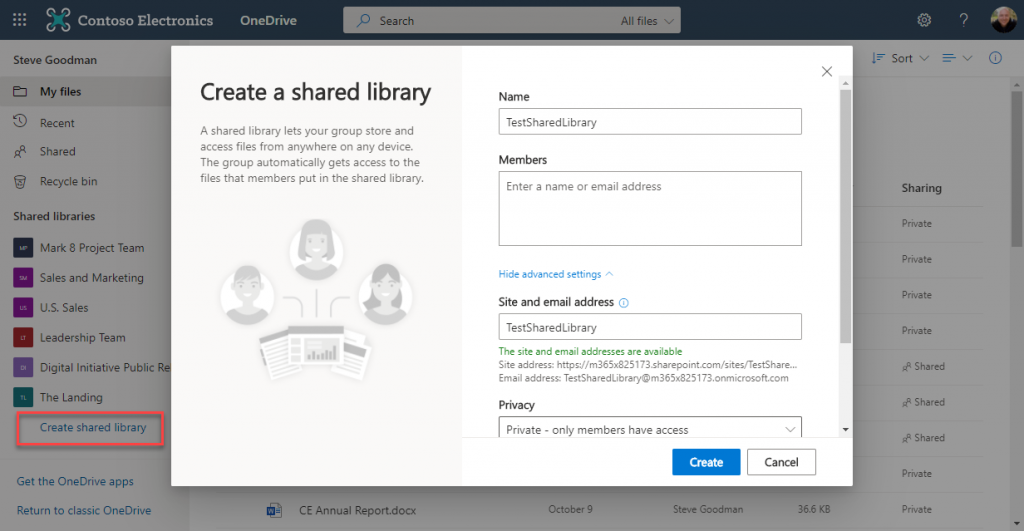


Option to “Create shared library” appears in OneDrive

As shown above, this new link will be shown underneath existing sites they have access to, and the first time it appears in your tenant for a user they will be encouraged to try it out.


This doesn’t only create a SharePoint Site but also creates a Microsoft 365 Group to underpin it. Therefore, if you currently manage the lifecycle of Groups and are comfortable with self-service, this shouldn’t present an issue – and of course, the Group can be “Teamified” later on should a user desire to do so.


The Expert Conference 2020 is next week, November 17-18


As with almost all conferences this year, TEC has gone virtual. Paul Robichaux, along with many other MVPs and experts, will be speaking next week. First, we take a listen to Tony Redmond explaining a bit about TEC.


You can register for TEC for free here


The post The Practical 365 Weekly Update: S2, Ep 5 – New Teams features and Exchange forwarding changes appeared first on Practical 365.


Thank you for viewing the article, if you find it interesting, you can support us by buying at the link:: https://officerambo.com/shop/

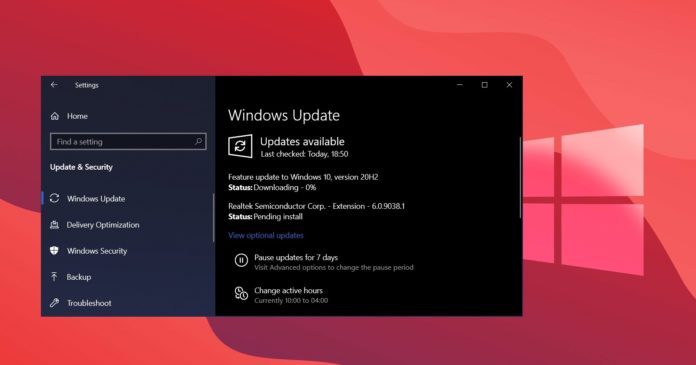
Adobe Flash Player stops working on Windows 10


Windows 10 Flash Player

Microsoft is believed to be working on an automatic Windows 10 update that will kill off Adobe Flash Player completely in 2021. Windows 10 update won’t affect any third-party programs and Chrome or Edge browser plug-ins, but Adobe is now rolling out a server-side update that blocks Flash Player content.


Flash Player hasn’t received any update since December 2020 and it has been on a downward trajectory since HTML5 and other alternatives came out. Adobe has been planning to end support for Flash Player for a few years now and it has also been working closely with tech giants to disable the flash player.


Starting January 13, Flash content no longer runs in Flash Player on Windows 10, third-party apps, and web browsers like Chrome.


If you try to open Flash Player content, Windows 10 app or the browser will automatically block the content and you’ll see the following icon:


Flash Player content


The icon opens Adobe’s warning page highlighting the Flash Player end of life. Unfortunately, it looks like there’s no easy way to load the flash content again, which means some of your flash-based online games will also stop working.


Flash contents won’t work in any versions of Windows 10 and it is recommended that you manually remove Flash Player software.


Microsoft is ending Flash Player support in Edge


Microsoft and Google have confirmed that they’re planning to remove Flash component from their web browsers later this month.


As we mentioned at the outset, an update will be pushed via Windows Update and Windows Update for business over the next few weeks to eliminate the legacy flash player. Windows update will also remove the ‘Flash Player’ section from the Control Panel.


Even with these changes, it’s highly likely that Flash-related components may continue to reside on your device. You should be able to remove all Flash Player apps and standalone installers from the Control Panel > Programs & Features page or Apps & Features page in the Settings app.


Thank you for viewing the article, if you find it interesting, you can support us by buying at the link:: https://officerambo.com/shop/

4 Best drawing software for Wacom tablets


Tashreef Shareef


by Tashreef Shareef


Windows & Software Expert


  • Picking the best drawing software for Wacom tablets can be a tricky task because of the wide range of options.

  • Depending on your requirements, consider a tool that offers advanced features for creative professionals.

  • If you are a new Wacom Cintiq user, then Adobe software would be an amazing fit for you.

  • From quick conceptual sketches to fully finished artwork, drawing software for Wacom helps make your creative process easy.


what is the best drawing software for wacom tablets


To fix various PC problems, we recommend Restoro PC Repair Tool:
This software will repair common computer errors, protect you from file loss, malware, hardware failure and optimize your PC for maximum performance. Fix PC issues and remove viruses now in 3 easy steps:


  1. Download Restoro PC Repair Tool that comes with Patented Technologies (patent available here).


  2. Click Start Scan to find Windows issues that could be causing PC problems.


  3. Click Repair All to fix issues affecting your computer's security and performance

  • Restoro has been downloaded by 0 readers this month.


Drawing tablets have become a go-to tool for digital artists worldwide, and Wacom drawing tablets are some of the best in the business.


But, having an excellent Wacom drawing tablet is half the job. You also need to find the right drawing software for Wacom that is fully compatible with the tablet.


When looking for drawing software for Wacom, it is important to think about your drawing needs. Depending on what you want to draw, if the art will be digital-only or go for print, you can pick a basic or advanced drawing software.


Now that you are clear about your requirements, let’s take a look at the best drawing for Wacom that will help you create that artwork that sweeps the audience off their feet.


What is the best software to use with the Bamboo Pen?


Thank you for viewing the article, if you find it interesting, you can support us by buying at the link:: https://officerambo.com/shop/

Wednesday, January 20, 2021

A first look at the Productivity Score Dashboard


A first look at the Productivity Score Dashboard

In this blog, we are going to be taking a closer look into a helpful new feature Microsoft is rolling out right now called Productivity Score.


Because of the pandemic and the inevitable demand of working from home, Microsoft is looking for more ways to accommodate companies and their users with valuable tools that ease the experience of end users and controls for IT admins.


However, for business owners, there is still a challenge getting insights into how people are working and collaborating from home. Apart from the Microsoft 365 reports, there wasn’t a real option to have deeper insights on how productive your employees are in their daily activities.


Now with the release of the Productivity Score dashboard, this changes the game and gives you much more ways to drive and improve productivity throughout your business.


Enabling the Productivity Score dashboard


To get started with the Productivity Score, you will first have to enable the feature and wait approximately 24 hours for Microsoft to collect telemetry data from its services.


To get access to the Productivity Score dashboard, you will need to have access to the Reports Reader role or higher.


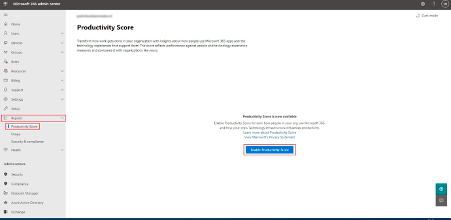
You can then enable the Productivity Score dashboard by going to https://portal.office.com, then expand the Reports > Productivity Score branch and click on Enable Productivity Score.


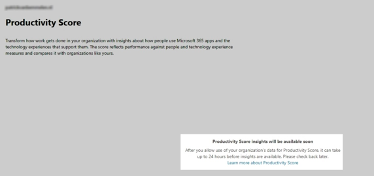
Productivity score dashboard

After you’ve enabled the Productivity Score feature, you’ll have to wait for the dashboard to get filled up with information.


Productivity score dashboard

Diving into the categories


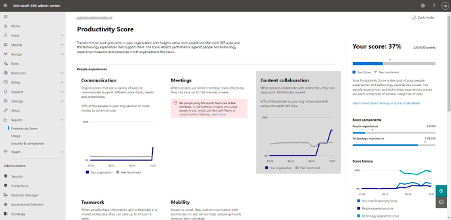
Once you have collected all the data, your dashboard will be populated, displaying all the different categories that the Productivity Score dashboard looks at.


Populated Productivity Score Dashboard

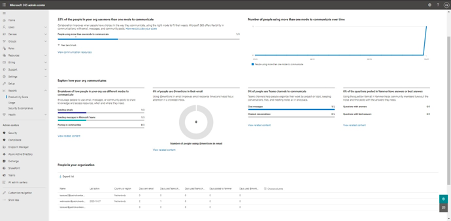
Diving into the categories, you’ll see a breakdown of each category, showcasing useful information on the subject matter. For example, when looking at the Communication category, you will notice that there are a lot of improvements that could be made, such as trimming down email usage across my organization.


To motivate people to collaborate via Teams instead of through email, I could set up a Team inside my Microsoft Teams environment named Tips and Tricks and share links to content that explains to people how they can collaborate more efficiently. You can even view the top users who use email instead of Teams and target your actions on these persons or groups.


Populated Productivity Score Dashboard

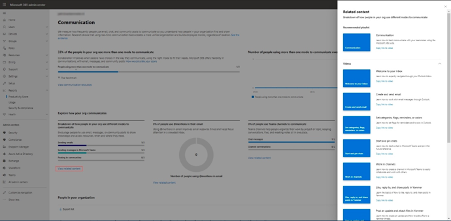
Think it’s hard to find material for that? Well, think again – clicking on View related content will give you links to videos created by Microsoft. You could post these links with a small introduction and view the progress right from the dashboard, measuring progress as you go along.


View related content on Productivity Score Dashboard

Endpoint analytics


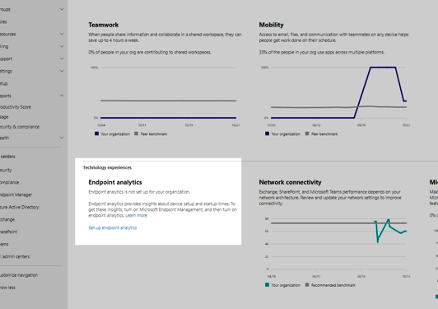
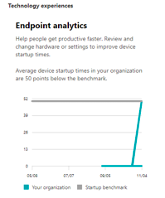
Besides from training and tips you can send to users, there is also a category which is more focused on the endpoint. We determine user experience through the tools we have to our disposal, but also on how our workstations perform. Boot times is one of the factors that can have a real impact on the experience users get while working on their endpoints.


To analyze this endpoint behavior, you can set up Endpoint Analytics in your Endpoint Manager environment.


You can do this by clicking on the Endpoint analytics header, where you’ll then be taken to Endpoint Manager to start the collection of data from your endpoints.


Note: To use Endpoint Analytics, your devices need to be enrolled and licensed for Endpoint Manager.


More details on licensing can be found here.


Endpoint Analytics on Productivity Score Dashboard

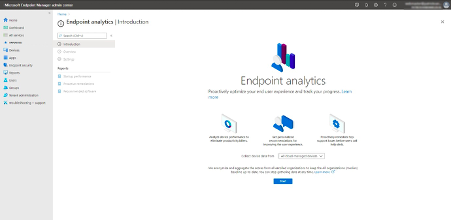
To start collecting the data, simply click on Start and the collection begins.


 Collecting data Endpoint analytics
Endpoint analytics overview

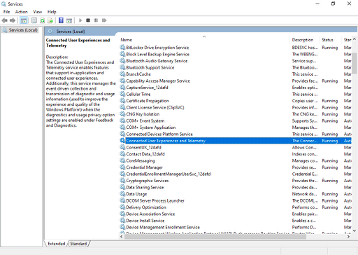
To send data over to the Endpoint analytics workspace, the Connected User Experiences and Telemetry service needs to run on your endpoints. This service is enabled by default, but if you find some endpoints that aren’t sending any data then be sure you check that out first.


Sending data over to the Endpoint analytics workspace

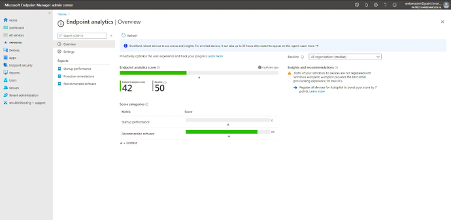
Once your all set, the Endpoint Analytics category will be showing the collected telemetry data from your endpoints, and you can then act upon the generated reports.


Collected telemetry data from Endpoints

Network Connectivity


Apart from endpoints, there is also another highly important factor when it comes to cloud services, which is network performance.


Network performance should not be overlooked, as it is crucial when it comes to delivering a great user experience.


Microsoft has added this new option to measure the network performance and which Paul Robichaux has written a blog about called Basic network monitoring for Office 365 which you can read here.


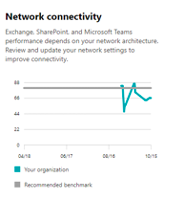
This test is a direct part of the Productivity Score dashboard and adds the test results to the overall score.


Network connectivity on the Productivity Score Dashboard

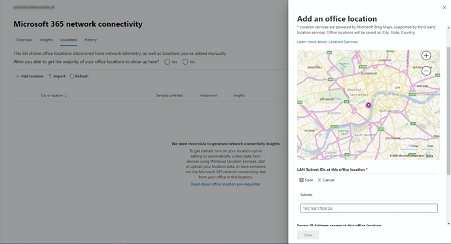
Part of this category is adding (Office) locations and specifying the IP subnets which are being used in the local networks.


To do this, you will need to go into the Locations tab and select Add location.


Next, you will need to enter the address of the location you want to add and the local subnets.


Network connectivity - add location page

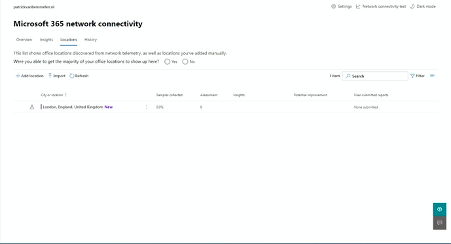
After you’ve finished adding in all the locations, it will start collecting and sorting all the measured performance telemetry data per location so you can have insights on your various Office locations.


Network connectivity insights

Microsoft 365 Apps Health


The last category in the dashboard is M365 Apps Health score.


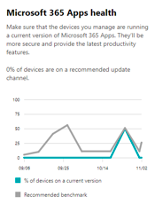
Microsoft 365 apps health

What this does is collect all the active versions of the Microsoft 365 Apps for Business and Enterprise installations.


The installed instances might get outdated over time, which could potentially lead to incompatibilities with add-ons and mean users experience issues which already have been fixed in new releases.


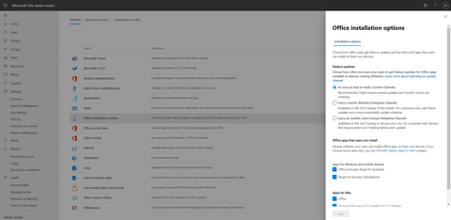
To be sure users get the best experience here you should choose your Update Channel wisely. Microsoft also recommends using the Current Channel or Monthly Enterprise Channel as the preferred channel for your Office installations.


You can change your companies Office Update Channel by expanding the Settings branch, then go to Org settings and select the Office installations option in the presented list.


Microsoft 365 app health settings page

Final verdict on the Productivity Score Dashboard


As you can see, The Productivity Score dashboard truly does bring insights into how people work to life, delves into how they operate in the Microsoft 365 services and how well the endpoints and networks that they are connected from are performing.


In my opinion, in times where so many of us now rely upon working from home, this will give IT pros and businesses more ways to ensure people are staying productive.


This concludes my first blog for Practical 365. I hope you enjoyed reading this article and if have you any questions, be sure to post them in the comments section below.


Thank you for viewing the article, if you find it interesting, you can support us by buying at the link:: https://officerambo.com/shop/

Windows 10 update turns off Aero Shake, adds new features to legacy tools


Microsoft has confirmed that it’s experimenting with a new change that will turn off the underused “Aero Shake” function in Windows 10. Aero Shake, otherwise known as “Shake to Minimize” allows you to minimize all open windows by shaking the cursor back-and-forth when left-clicking on a primary window.


Shake to Minimize function was added with Windows 8, and it’s handy when you want to focus on a particular window and minimize the rest in one go.


As we reported in December, references spotted in the preview builds show that a future Windows 10 update will turn off the “Aero Shake” feature by default. Almost after a month, Microsoft has confirmed that this function is now disabled but it can be enabled via Registry Editor.


“Aero Shake is disabled in this build. To enable it, you will need to go here in Registry Editor and create a new DWORD entry named DisallowShaking with a value of 0,” Microsoft noted in the changelog of Build 21286.


It appears that Microsoft is now planning to turn off the feature by default and add an “Aero Shake” toggle to the Settings app for those who need it.


Windows 10 legacy tools are getting better


Microsoft has been slowly adding more advanced options to the Settings app in Windows 10 to create one settings experience that’s consistent across all form factors, including Windows 10X and HoloLens.


However, Microsoft hasn’t forgotten the legacy apps such as Registry Editor and Device Manager. In the latest preview build, the software maker is testing new features for these two tools.


With Build 21277, Microsoft added a new feature to Registry Editor that will finally allow you to use CTRL + Backspace to delete words at a time.


This keyboard shortcut will delete the entire word to the left of your cursor in the ‘Find’ window and other places in one keystroke, which means you no longer need to delete every letter manually.


In another preview update, Microsoft is experimenting with a new feature called “ViewDrivers” for the Device Manager.


This will allow you to quickly identify the drivers that are using * .inf files with detailed information so that you can better manage the updates for the driver and compare the version correctly with the driver offered on the manufacturer’s site.


The post Windows 10 update turns off Aero Shake, adds new features to legacy tools appeared first on Windows Latest


Thank you for viewing the article, if you find it interesting, you can support us by buying at the link:: https://officerambo.com/shop/

How to open PES files on Windows 10 computers


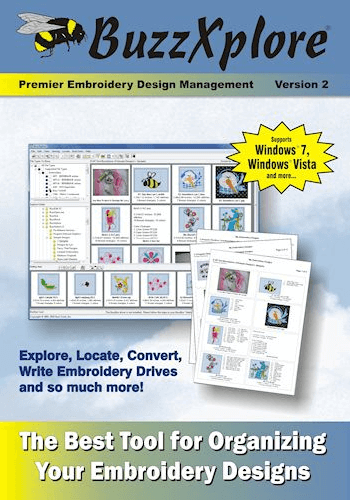
When it comes to embroidery software, Buzztools is one of the best with its excellent features offered. The program has been in the industry since 1997 and has garnered customer loyalty based on their experience.


In addition, this program enables 3D viewing, conversion, and browsing of embroidery designs. The easy-to-use GUI (Graphic User Interface) makes it ideal for practice by home users.


Buzztools support many popular embroidery file formats which include SVG and most especially PES files formats.  You can customize font size, colors, and other details of your PES file using Buzztools.


The software is highly rated for its clean and professionally presentable designs making it an excellent embroidery program. Buzz tools cost $149 to download.


Get Buzztools


Studio Plus is an embroidery design program with a very good interface and excellent services.  It is used primarily to make catalogs, inspirational images, and clothing designs.


You can easily open PES files in Windows 10 computers by using this software. This tool makes it easy to modify and convert images and text files even with zip protection.


Studio plus supports many formats of embroidery software files. PES files are viewed and modified using Studio Plus tools whereby you can change the font size, color, and other adjustable features.


PES files can then be converted to other file formats using the inbuilt converter integrated with the program. In addition, Studio Plus is a good embroidery program and fares well when compared to Buzztools.


Hence, Studio Plus is a must-have program to open PES files in Windows 10 most especially if you’re into embroidery.


Get Designer Gallery Studio Plus


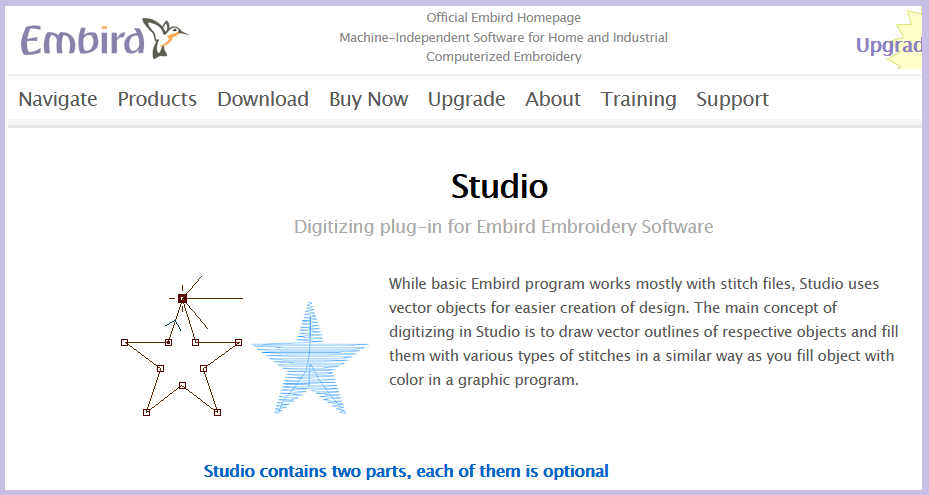
Embird Studio is an embroidery vector-based software used to create fashion designs.


The program uses vector outlines to draw stitches and sketches in which you choose the color of the design of your preference to achieve a professional-looking design.


Embird Studio supports numerous embroidery and image formats such as BMP, JPG, TIF, and most especially PES files.


PES files can be viewed and modified using Embird Studio; you can insert and design colors, join or split designs and resize density, centers, and size of your PES file.


In addition, Embird Studio can also compress PES files to ZIP and RAR format or convert them to other file formats. Balard Embird Studio is a good embroidery program to open PES files on your Windows 10 operating system.


However, Embird Studio is pricey with the registration fee costing $190 for downloading the software.


⇒ Get Embird Studio


The programs we mentioned above can open PES files in Windows 10. However, most of the programs come at a cost and represents good value for money as they are easy to use with powerful tools features.


Hence, you can get any of the software we mentioned above to open PES files in Windows 10. Share your experience with us in opening PES files on your Windows 10 computers. Feel free to comment below.


FAQ: Learn more about PES files on Windows 10


  • What is a PES file format?

The PES file format is the one used to generate embroidery designs and images.


  • What program opens a PES file?

The best program that opens a PES file is by far Adobe Photoshop. It’s incredibly user-friendly and customizable, so you’ll feel right at home while using it.


  • Can you convert SVG files to PES files?

Yes, you can. Don’t hesitate to use Embroidermodder as it supports SVG file conversion as a source file type.


Editor's Note: This article was originally published in May 2018 and was revamped and updated in January 2021 for freshness, accuracy, and comprehensiveness.

Thank you for viewing the article, if you find it interesting, you can support us by buying at the link:: https://officerambo.com/shop/
Use Plus Addressing in Microsoft 365 to create email addresses on the fly


Plus Addressing in Exchange Online

Plus addressing allows you create additional email addresses on the fly, and is useful when sign-up for mailing lists or online services. Email addresses created this way use your existing email address as the basis and once configured within Office 365, don’t require any administrator intervention to use.


A normal email address is in the form steve@practical365.com and with the “local” part being the name before the @ symbol. With plus addressing, you can create a new email address, like steve+onlineshopping@practical365.com by adding a plus (+) after the local part followed by your preferred tag.


Enabling Plus Addressing in Exchange Online


Plus addressing is off by default in Exchange Online, and is not available on-premises. This is because in the past, Exchange Online has allowed administrators to create email addresses containing the plus character for users.


To enable plus addressing, first, connect to Exchange Online using Powershell. In Exchange Online Powershell, use the following command to enable plus addressing for your organization:


Plus addressing is enabled rapidly – in our testing it was enabled within the hour.


Using Inbox rules to filter mail received


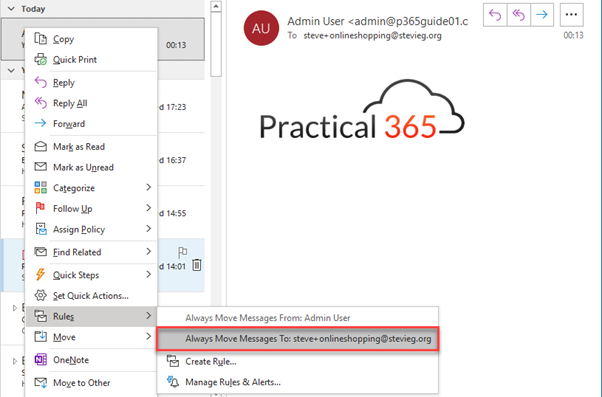
It is straightforward to use Inbox rules in Outlook to filter mail received via plus addressing. You can use this to auto-delete messages, if your additional email address ends of on spam lists, or most usefully you can automatically move messages into an Inbox folder.


To do this, right click on a message received to the additional address – it will be shown in the to field of a relevant message – then from the menu choose Rules>Always move message to..


Plus Addressing in Exchange Online

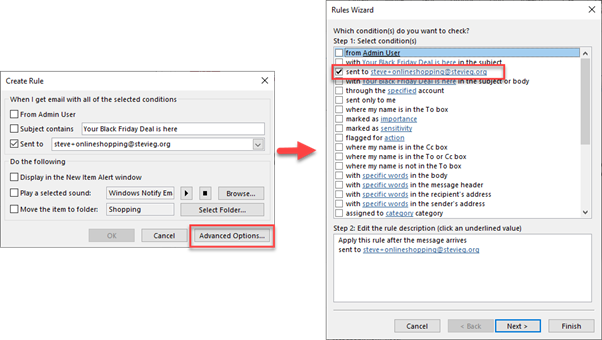
On the menu shown, you’ll be presented the option to create a new folder and automatically move messages. You can also choose Create Rule, and create an advanced rule based on the same criteria:


Plus Addressing advanced options

Learn more: Switching Off Legacy Authentication for Exchange Online


Thank you for viewing the article, if you find it interesting, you can support us by buying at the link:: https://officerambo.com/shop/